Connect Blost to my website
WordPress, UNAS or Blost hosting: this is where you tell Blost where to put the finished articles. (5 steps, about 3 min)
Open the CMS connection
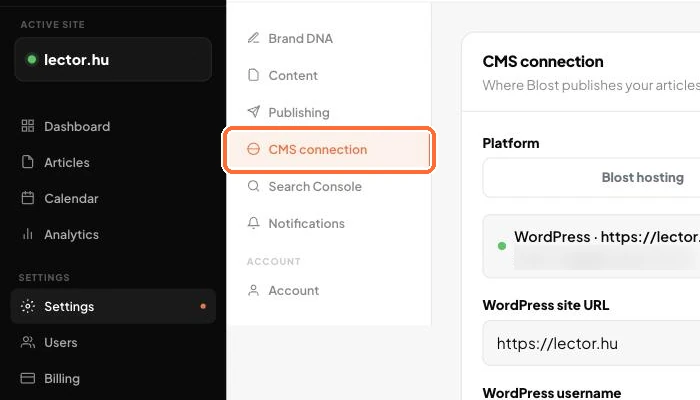
Settings → CMS connection.
Choose the platform
Platform: Blost hosting, WordPress or UNAS. Blost hosting suits sites that are custom built: your blog appears on a subdomain you choose.

Follow the interactive tour
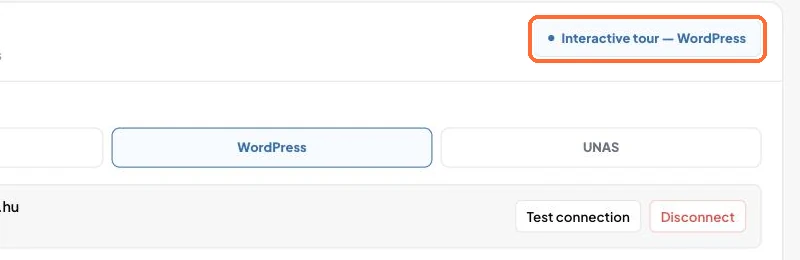
In the top right corner of the card you will see the Interactive tour — WordPress button (UNAS for UNAS). It walks you step by step through filling in the details and creating the application password, in your own logged-in account.
Enter the details
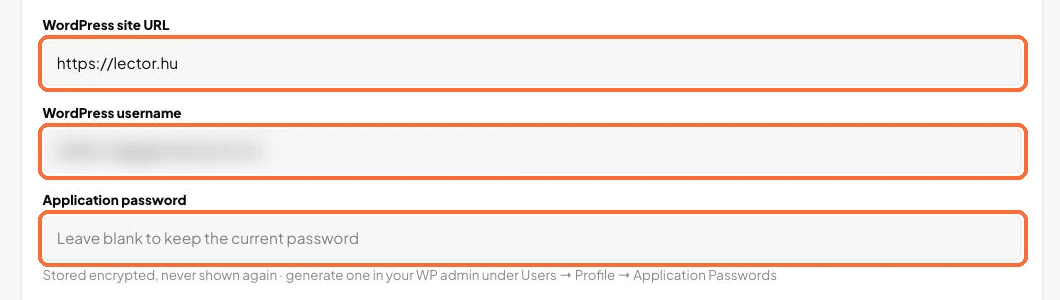
WordPress: your WordPress site URL, your WordPress username and an Application password (create it in the WordPress admin: Users → Profile → Application Passwords). UNAS: your Webshop URL and the API key. Blost hosting: the subdomain you want.
Check the connection
Click the Test connection button. If the test fails, check the details you entered.

- If you want to disconnect the site later, use the Disconnect button.