Move an article to another day
You can change the day of a scheduled or planned article in two ways: quickly by drag and drop, or in the Article details panel, where you can change the time too. (6 steps, about 10 sec – 1 min)
Open the Calendar
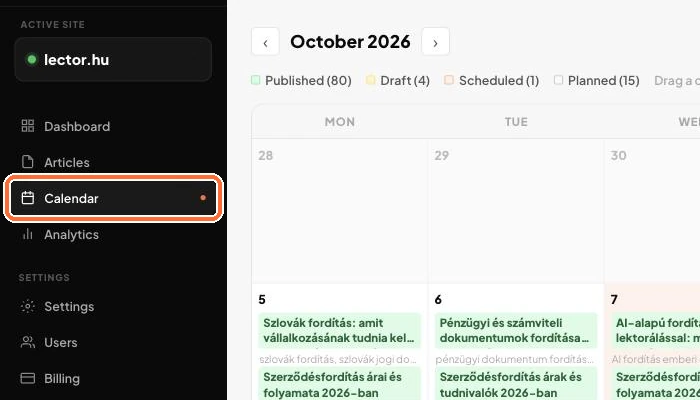
In the left menu, click Calendar, then choose the Calendar view (not List). From here you have two ways to go on: method 1 is faster, method 2 also lets you change the time.
Method 1 – Grab the card
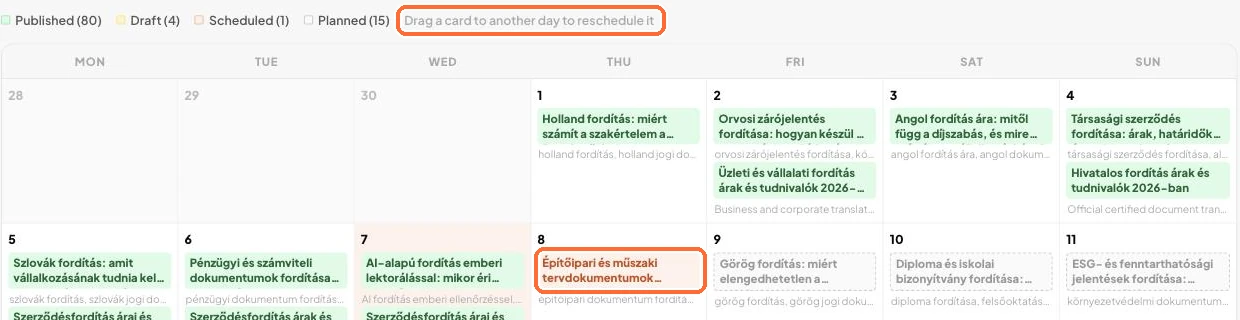
Press and hold the mouse button on the article’s card. The card fades and the cursor turns into a grabbing hand. Only articles that are not published yet (planned, draft, scheduled) can be moved.
Method 1 – Drop it on the new day
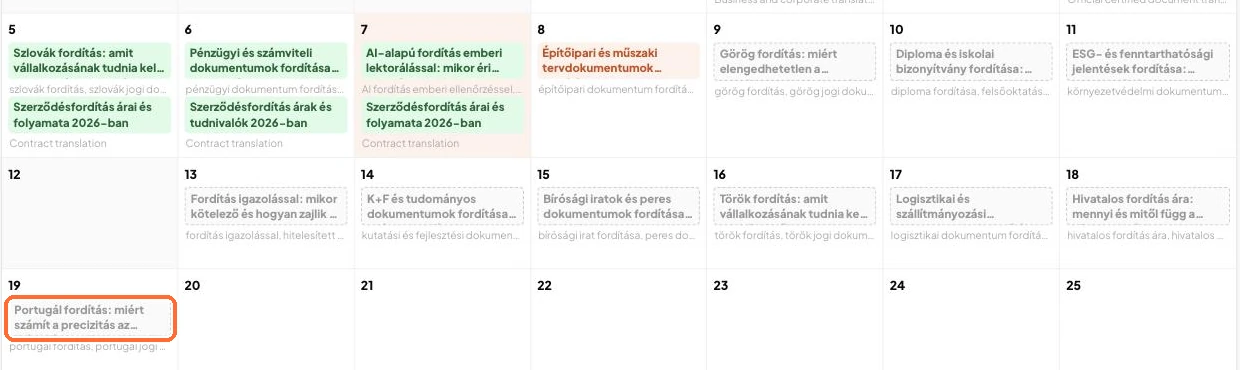
Drag the card onto the new day. While you hover over a day, an orange dashed border shows where it will land. Release the mouse button. It saves automatically. Only the day changes, the time stays the same.
Method 2 – Click the article
Click the article and the Article details panel opens on the right.

Method 2 – Change the date and time
In the Publish date & time field, change the date and the hour. It is best to pick a day that is a publishing day. The Calendar marks these with an orange stripe.

Method 2 – Save
Click the Save changes button. The change shows in the Calendar right away.

- By dragging, you can only move an article to days of the month currently shown. To move it to another month, use the Article details panel.
- If saving the drag fails, the card jumps back and you get an error message.
- Articles that are already live (published) cannot be moved.
- A scheduled article only goes out on its own if auto-publish is switched on.