Blost should not post articles on its own. You review and fix them first, then publish. (4 steps, about 2 min)
STEP 1
Turn off auto-publish
Settings → Publishing → Auto-publish toggle: switch it off (grey).
The Auto-publish toggle switched off
STEP 2
Save
Click the Save changes button.
The Save changes button
STEP 3
Wait for the approval email
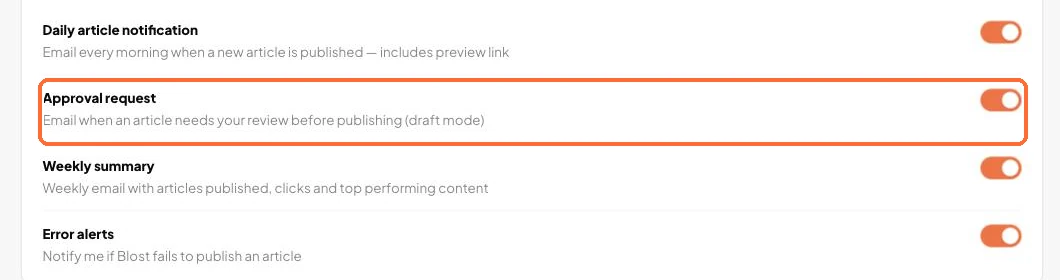
From now on Blost saves articles as drafts and emails you the title, the image and a link to the editor. For this, keep Approval request switched on under Notifications.
The Notifications page: the Approval request toggle
STEP 4
Review and publish
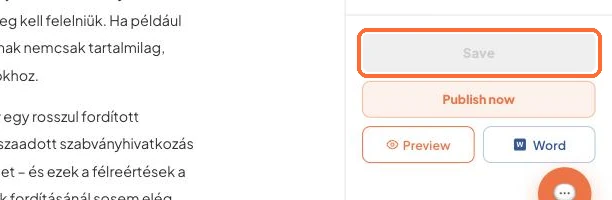
Open the article (from the email or the Articles menu), read it, fix what you want, then click Publish now.
The editor with the Publish now button
Good to know:
If an article was already scheduled when you turned the toggle off, Blost will not publish it on its own either. Publish it manually.
A draft also counts toward your plan’s monthly article limit.
If several people review the articles, also turn on the Word (.docx) copy in the Publishing settings.
To go back to automatic publishing later, switch the toggle on again in the same place.
✓ Done!
Didn't work, or stuck?Ask the Blost AI assistant (bottom right corner), or write to us: info@blost.ai